Setup
SetupSetup
If you haven't updated from ailia DX Insight 1.0 to 1.1 yet, please check here.
Please check here for the latest update information.
Download
Download ailia DX Insight and unzip the zip file.
Start Installer
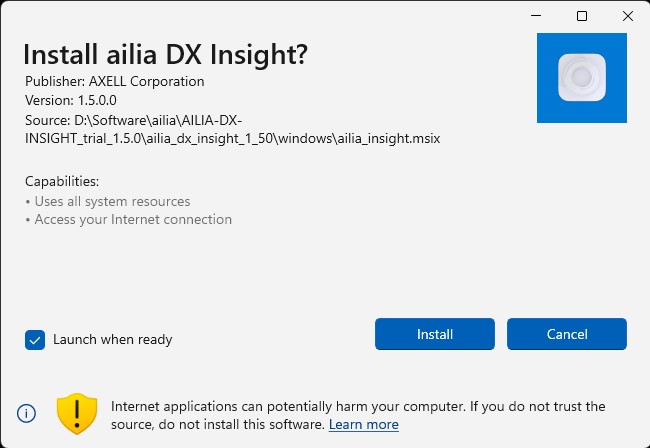
For Windows, double-click aillia_dx_insight.msix to launch the installer. For macOS, right-click ailia_dx_insight.dmg and select Open to launch it.
Agreement to Terms of Use
To use ailia DX Insight, you must agree to the terms of use. Review the terms of use displayed on the first launch, and if there are no problems, select Agree.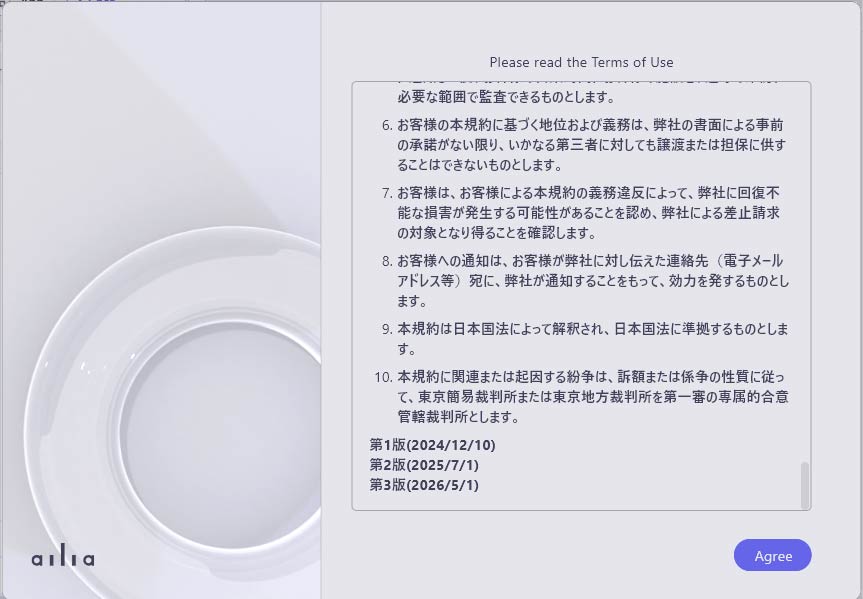
Start Tutorial
Once you agree to the terms of use, the tutorial will start.
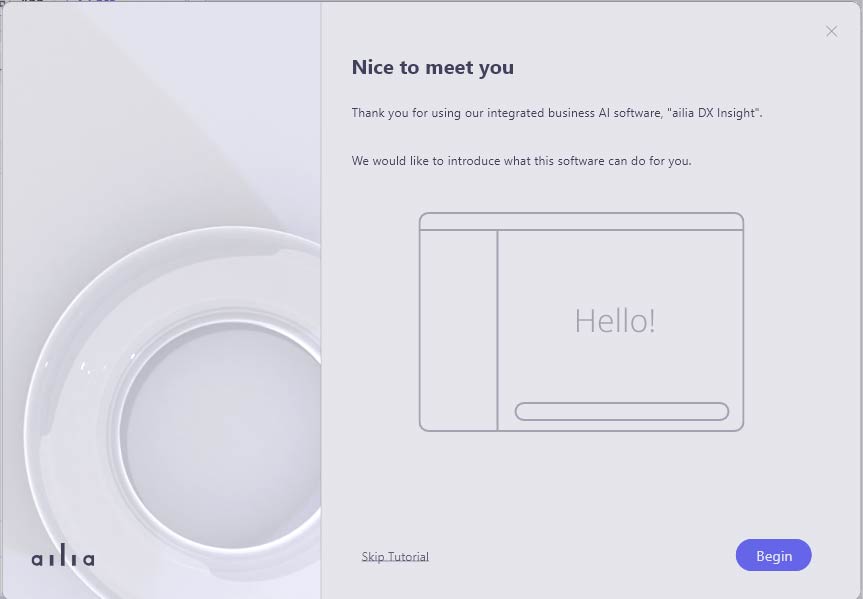
You can set the OpenAI API key on the final screen of the tutorial. Even without entering the OpenAI API key, ailia DX Insight can be used with on-device AI models and so on.
Setting OpenAI API Key
To use ChatGPT, register an account on the OpenAI WEB page and obtain the OpenAI API key.
If setting from the tutorial
- Proceed to "API Key Settings" at the end of the tutorial.
- Enter the OpenAI API key starting with "sk-" into the text box below "OpenAI API Key".
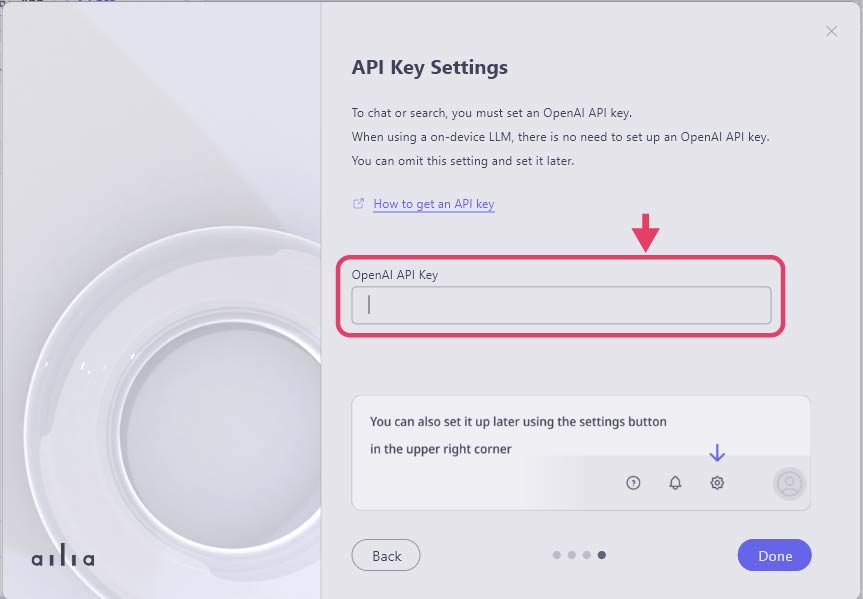
- Press the "Done" button.
If setting from the normal screen
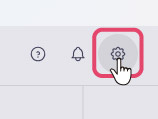
- Press the gear icon in the top right corner of the screen.
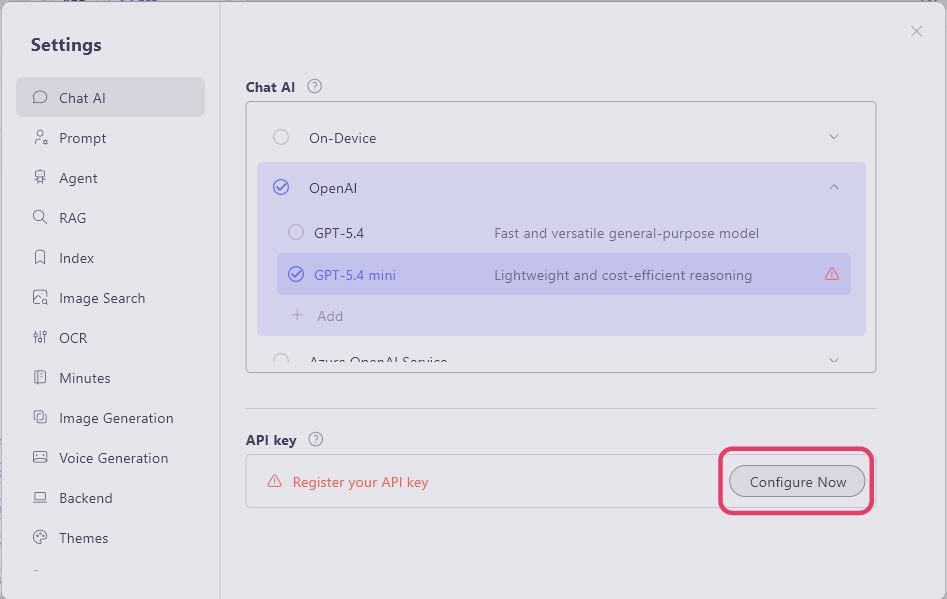
- In the "Chat AI" section, select "Configure Now" under "API key."
- Enter the OpenAI API key starting with "sk-" into the text box in the displayed dialog.
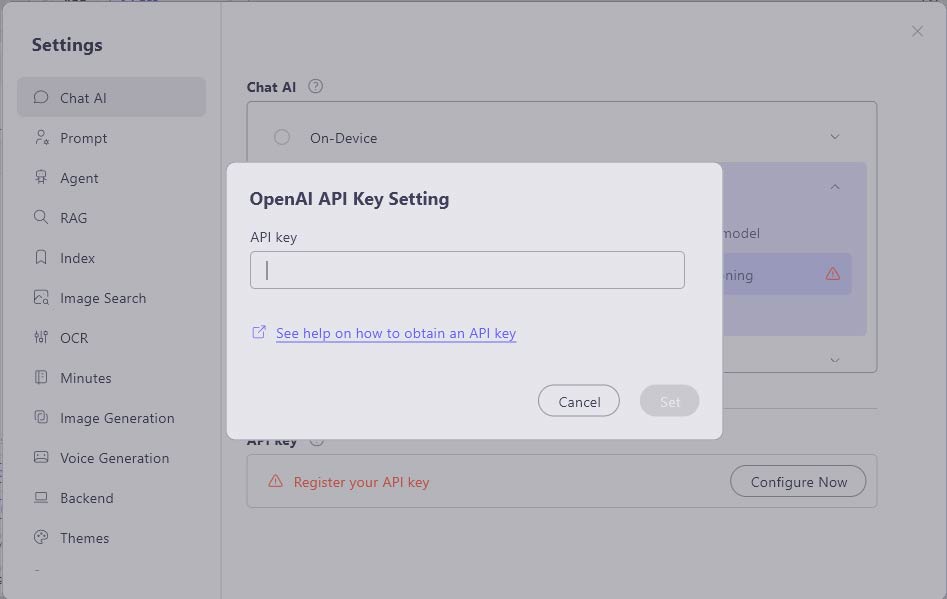
- After entering the information, select "Set" to complete the setup.
Downloading AI Models
After completing the tutorial on the first run, the AI model download will start. You can check the progress at the lower part of the left sidebar.
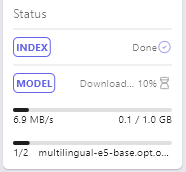
Once the download is complete, ailia DX Insight will be available for use.
Selecting an OpenAI Model
- On the ailia DX insight screen, click the gear icon in the upper right corner to display the settings window.
- Click "OpenAI" in the "Chat AI" section and select a model.
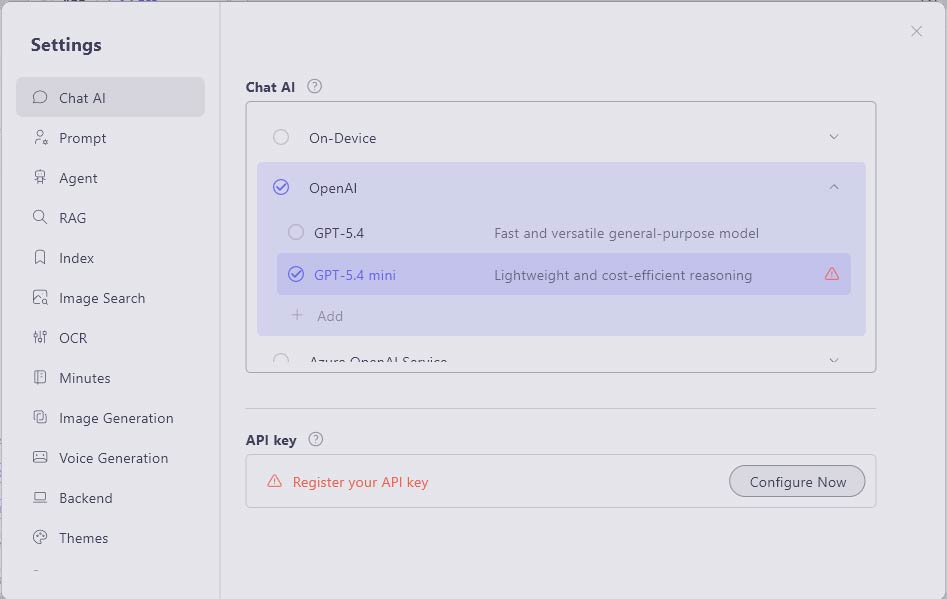
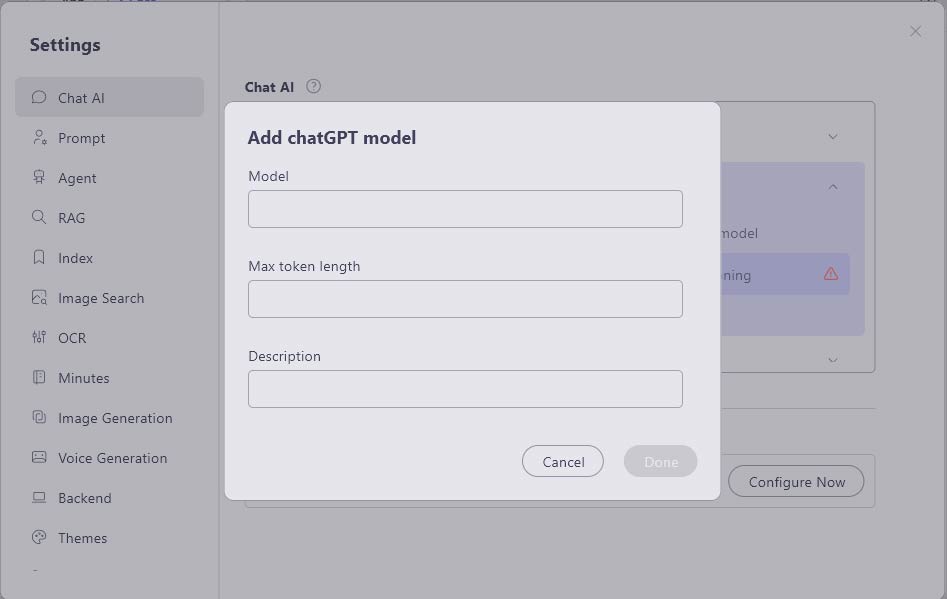
*If a model is accessible via OpenAI's API, it can be added even if it is not in the model list.
Select "+ Add" at the bottom of the OpenAI model list, enter the Model name/Max token length/Description (optional), and press "Done" to add the model.
Changing Color Theme
You can switch the color theme to "Light" or "Dark" from "Themes" in the settings of ailia DX Insight.
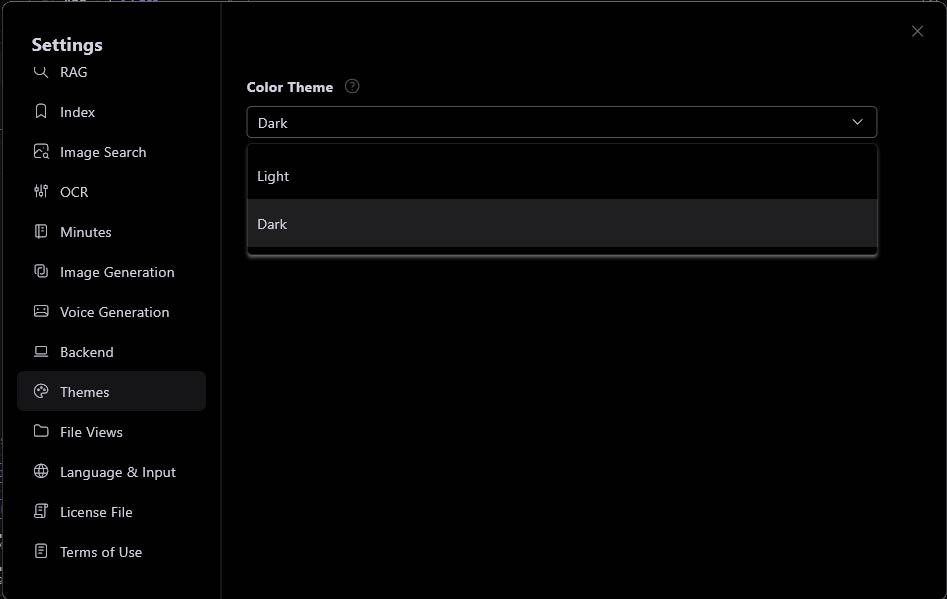
*When the color theme is set to Dark, if you select a range of an AI-generated answer and then right-click, the context menu will be displayed in white.
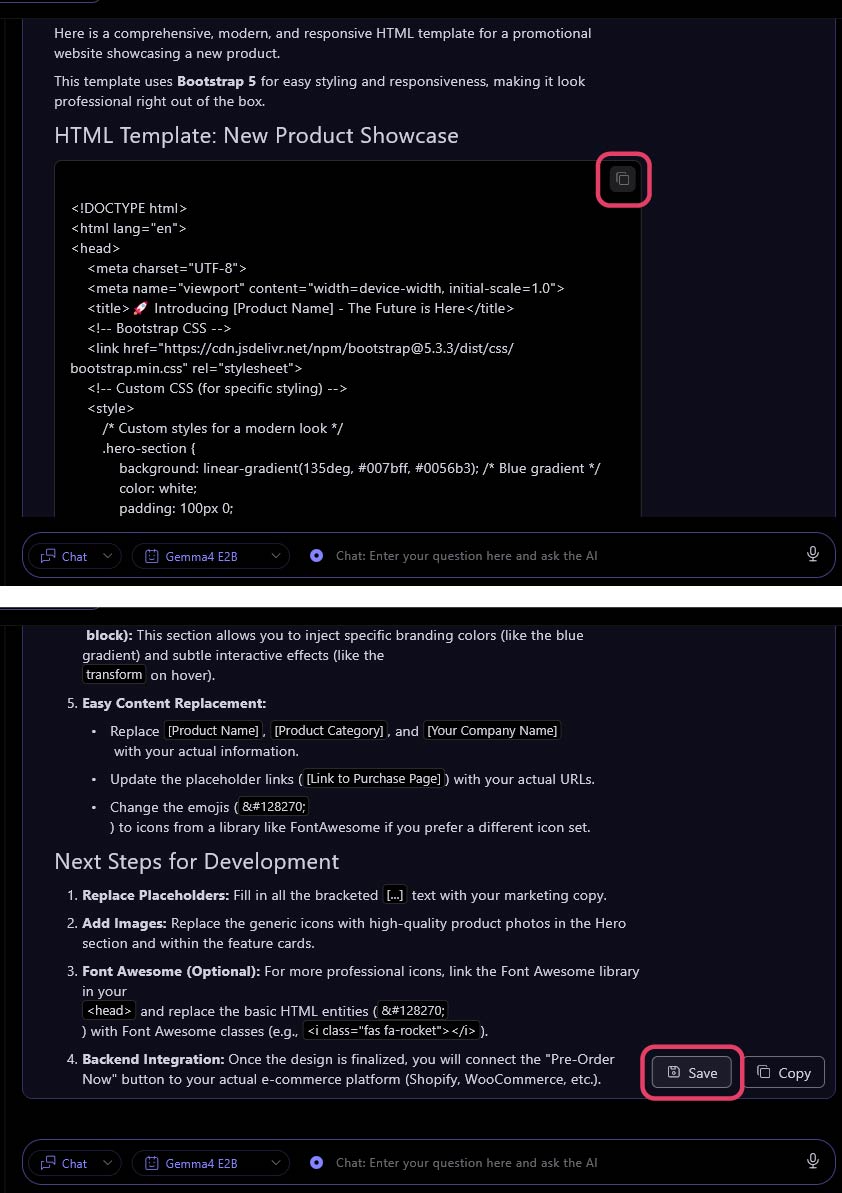
If you want to copy the AI answer field while the color theme is set to Dark, press the "Copy" button on the right side of the answer field.
(To copy code, press the copy icon in the code field.)