 Using the AI Agent
Using the AI Agent
By granting the AI agent access to the files it needs, you can have it edit files directly on your behalf.
Because you can define the scope of access in advance from the settings screen, you can safely delegate file editing.
LLMs available in Agent Mode
Agent Mode is available with OpenAI, Claude, Gemini, and Gemma4.
It cannot be used with Azure, OpenRouter, or local LLMs other than Gemma4.
Asking the AI Agent to Edit a Specified File
Set the app mode to Chat.
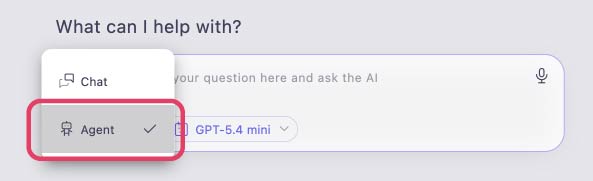
In the query bar, change the mode from "Chat" to "Agent". *Make sure the app mode is set to "Chat" before performing this operation.
In the query bar, enter "the changes you want made" and "the directory (path) of the relevant file".
Handy feature: Dragging and dropping a file from Explorer (Windows) or Finder (Mac) directly into the query bar will fill in the directory automatically.
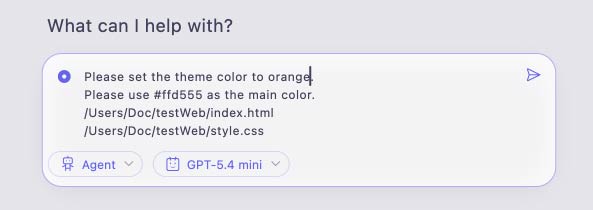
Click the send button.
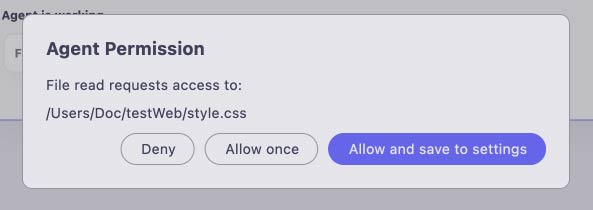
If you have not yet granted the agent file permissions, an "Agent Permission" popup will appear, requesting access to the file. Check the displayed path and allow access if there are no problems.
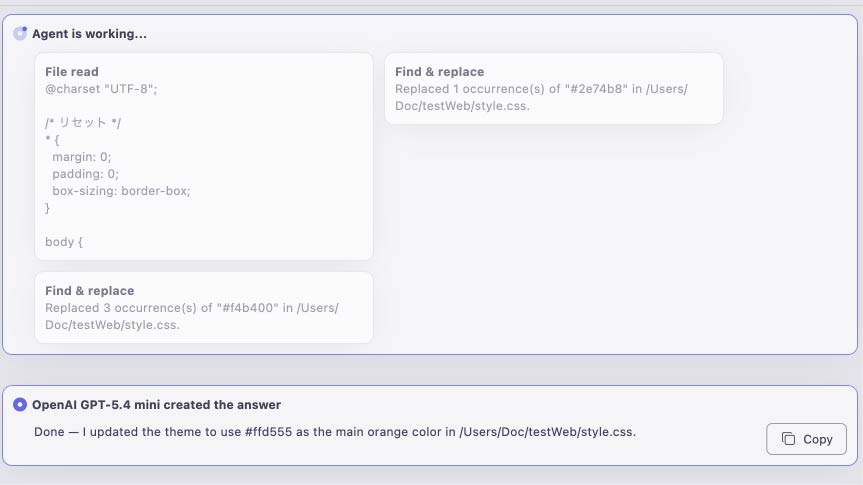
Once write access is granted, the agent will directly modify the files on your PC.
Changing the agent settings
You can change detailed settings related to the AI Agent from the "Agent" section of the settings screen.
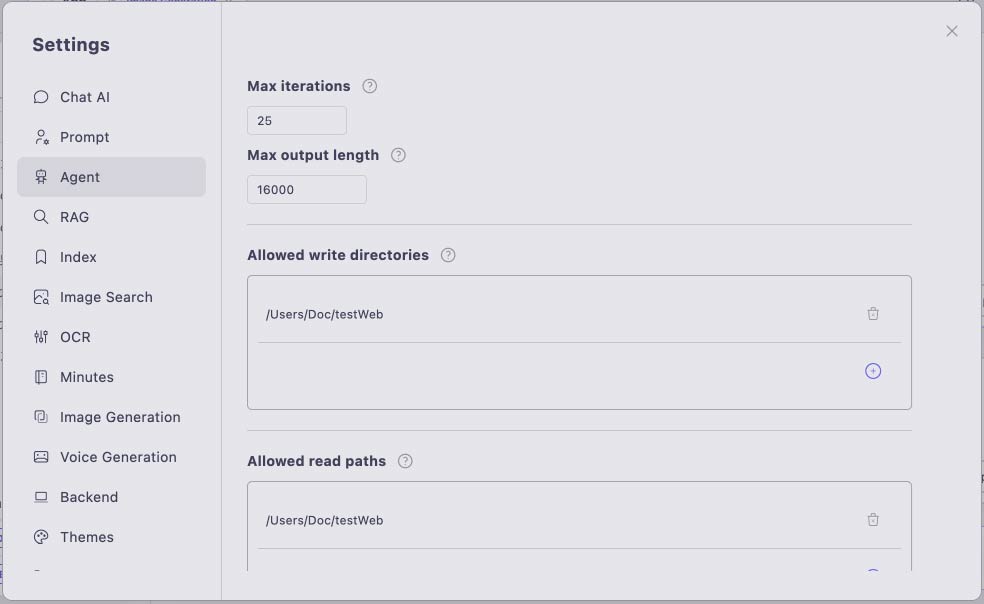
Maximum number of iterations : Defines the maximum number of times the agent will reason (think) in response to a single question. Increase this value for complex tasks.
Maximum output characters : Specifies the maximum number of output characters for each tool the agent uses. For the file-reading tool, files exceeding this size are read in split chunks.
When using a cloud LLM with a large context, increasing this value can improve processing speed.
Note that during the reasoning loop, the output of all tools is retained, but if it exceeds 75% of the LLM's context length, it is compressed through compaction.
Managing the Agent's File Permissions
By managing the AI Agent's "read" and "write" permissions for files on your PC or in external cloud repositories, you can use the AI Agent feature more safely.
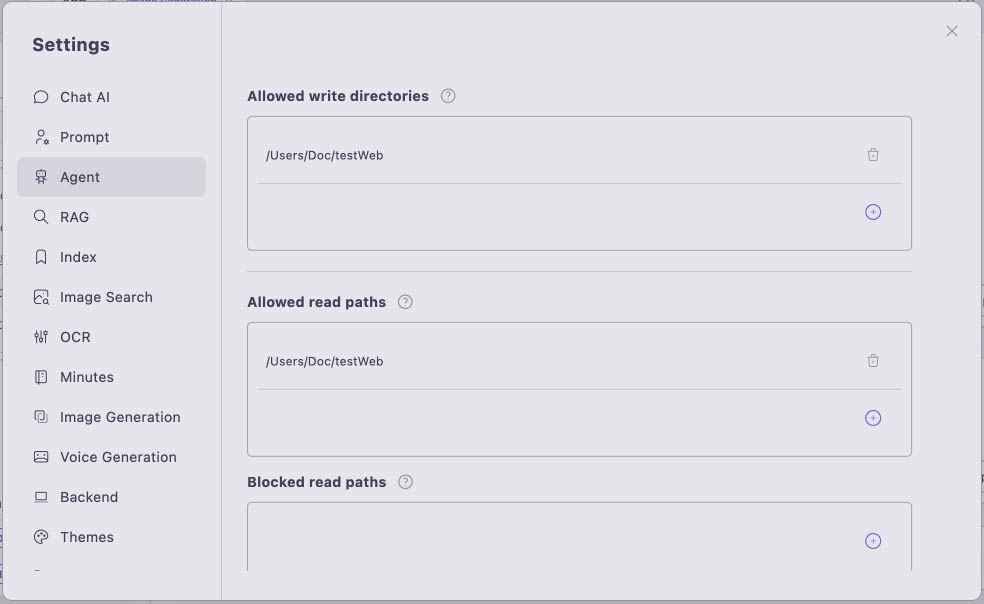
Even when you grant access on the "Agent Permission Confirmation" screen and choose "Add to settings", the choice is automatically reflected in these settings.
Allowed write directiories : Allows the agent to write to files within the directories registered here.
Allowed read paths : Allows the agent to read files at the paths registered here.
Blocked read paths : Denies (restricts) the agent from reading files at the paths registered here.
Allowed fetch URLs : To link with external cloud repositories such as GitHub and allow the AI agent to sync/retrieve (Fetch) data, register the target repository URL here.
Blocked fetch URLs : If there are URLs you want to prevent the AI agent from fetching, register the target repository URLs here.