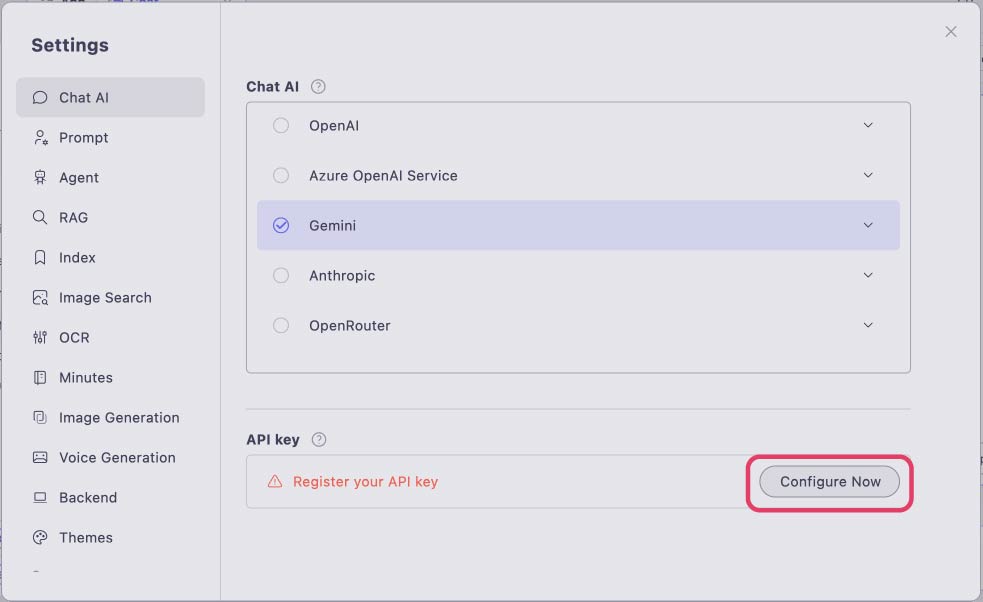
Gemini
Gemini
ailia DX insight can also perform text generation using Gemini. For details on Gemini, please refer to here.
How to Connect to Gemini
Calling the Settings Window
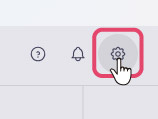
- In the initial screen of ailia DX insight, click the gear icon in the upper right to display the settings window.
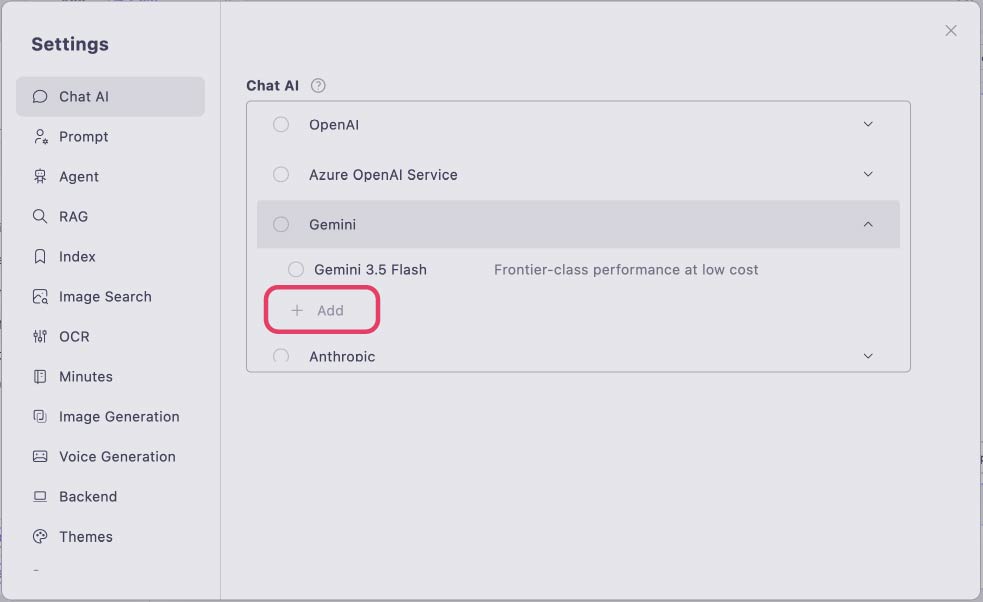
- Click "Gemini" in the "Chat AI" items and select "+ Add".
Register Gemini Settings
A window will open to register ChatGPT deployed in Gemini. Fill in each item.
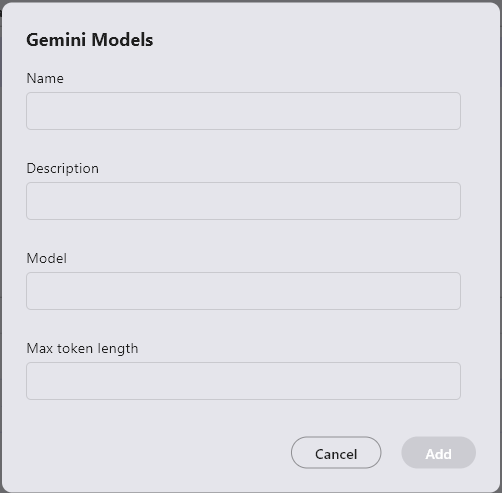
- Name: Name used for UI display
- Description: Use as a memo as needed
- Model: Deployed model name
- Maximum Token Length: Maximum token count of the model
When "Register API Key" is displayed in the API key section, set it.
For information on API keys and model names, please refer to here.
Obtaining a Gemini API Key
An API Key is required to use the latest Gemini API.
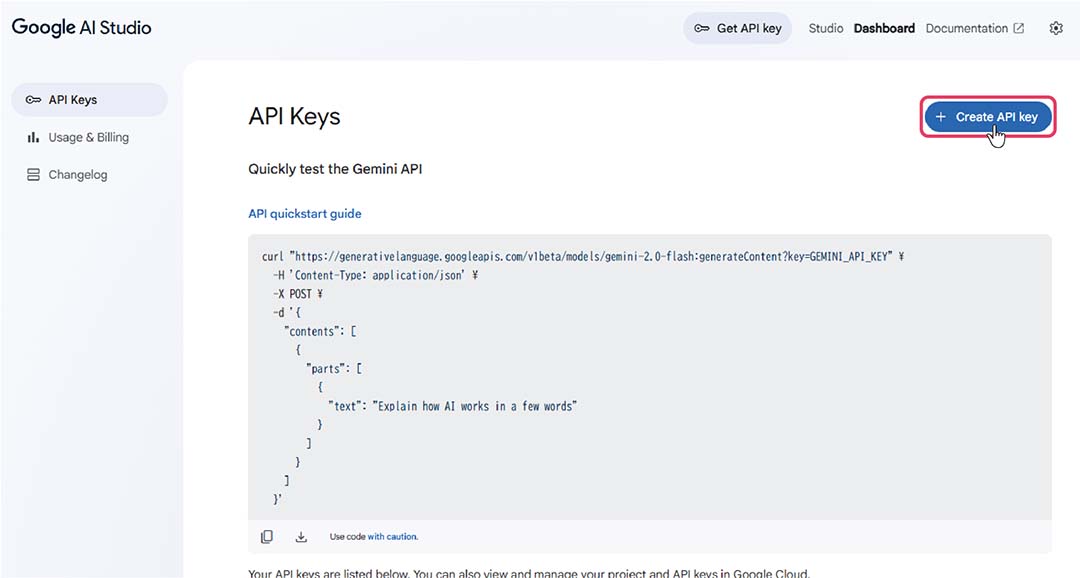
Please obtain the API Key from Google AI Studio.
Click on "+ Create API Key".
*If you do not have a Google account, please create one.
The API key will be displayed in the window, so copy it to the clipboard.
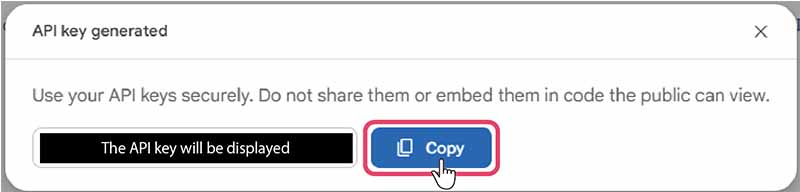
Set the API key in the settings screen of ailia DX Insight.